Saturday, September 30, 2023

STM32F103R6 USART1/UART1 Progamming Example Using STM32CubeIDE

Overview

The STM32F103R6 has up to two USART(Universal Synchronous/Asynchronous Receiver/Transmitter) communication modules, USART1 and USART2. These communication interfaces could be configured as synchronous or asynchronous transmission. Synchronous transmission uses a share clock line that synchronize with data.

STM32F103R6 USART1/UART1 Progamming And Interfacing Example Using STM32CubeIDE
A serial communication between two devices using a shared clock source
In asynchronous transmission the device require only a transmitter(Tx) or a receiver (Rx) pin to send or receive the data. Communication device use its dedicated clock source to create precise timing that sample serial data. For asynchronous communication it's called UART(Universal Asynchronous Receiver/Transmitter).

STM32F103R6 USART1/UART1 Progamming And Interfacing Example Using STM32CubeIDE
The timing diagram of a serial communication without a dedicated clock line
STM32F103R6 USART1/UART1 Progamming And Interfacing Example Using STM32CubeIDE
The signaling difference between a USART and a UART

UART is more convenient than USART because it does not require clock line over the communication interface. In some case it requires more control lines. For electronic hobbyists it is widely used with some device such as,

  • the Bluetooth module, 
  • the Arduino serial interface that use as program uploading and serial data transmission,
  • the ESP8266 WiFi module,
  • the Nextion HMI (Human Machine Interface)
  • the GSM module.
Some electronic equipment have an on-board UART interface that is useful for checking device booting status, or fixing device firmware issue using command line.
 

The Baud Rate (bits per second) is the numbers of data bits transferred per second. The STM32F1xx has the following Baud Rate.

STM32F103R6 USART1/UART1 Progamming And Interfacing Example Using STM32CubeIDE
stm32f101xx-stm32f102xx-stm32f103xx-stm32f105xx-and-stm32f107xx- standard Baud Rate

Using the STM32CubeIDE and its CubeHal, the programmer doesn't need to calculate and configure its internal register as the IDE has a code configuring tool.

UART Programming In STM32CubeIDE Example

There are a lot of library functions in the STM32CubeIDE especially the HAL(Hardware Abstraction Layer) libraries. We still able use ARM Cortex-M3 legacy libraries in this IDE. The following APIs are belong to the IO operation functions group,

- HAL_UART_Transmit()
- HAL_UART_Receive()
- HAL_UART_Transmit_IT()
- HAL_UART_Receive_IT()
- HAL_UART_Transmit_DMA()
- HAL_UART_Receive_DMA()
- HAL_UART_DMAPause()
- HAL_UART_DMAResume()
- HAL_UART_DMAStop()
- HAL_UARTEx_ReceiveToIdle()
- HAL_UARTEx_ReceiveToIdle_IT()
- HAL_UARTEx_ReceiveToIdle_DMA()
- HAL_UARTEx_GetRxEventType()
- HAL_UART_Abort()
- HAL_UART_AbortTransmit()
- HAL_UART_AbortReceive()
- HAL_UART_Abort_IT()
- HAL_UART_AbortTransmit_IT().

However there are additional function such as, Peripheral Control function, Peripheral State and Errors functions group.

In this example I will use a few functions,

- HAL_UART_Init (UART_HandleTypeDef * huart)

For example HAL_UART_Init (&huart1) , or HAL_UART_Init (&huart2)

- HAL_UART_Transmit (UART_HandleTypeDef * huart, const uint8_t * pData, uint16_t
Size, uint32_t Timeout)

For example  HAL_UART_Transmit(&huart1,"Hello",5,1000)

-  HAL_UART_Receive (UART_HandleTypeDef * huart, uint8_t * pData, uint16_t Size,
uint32_t Timeout)

For example HAL_UART_Receive(&huart1,myData,1,1000)

I will show a simple programming using CubeHAL. The firmware will be use with Proteus Simulator.

STM32F103R6 USART1/UART1 Progamming Example Using STM32CubeIDE
Simulating Program - Virtual Terminal Acts As UART Receiver/Transmitter.
The STM32F103R6 uses an 8MHz HSI (High Speed Internal RC Clock Source). Its supply voltage is +3.3V but some input pin could withstand up to +5V tolerant. PC0 and PC1 are output pin connect to their own LED. We just type a command to control the output LEDs,

  • 1 LED1 ON
  • 2 LED1 OFF
  • 3 LED2 ON
  • 4 LED2 OFF

Now we will start writing the program for this example by creating a new STM32 project. Click on the USART1 in device configuration tool and select Asynchronous in Mode combo box.

STM32F103R6 USART1/UART1 Progamming Example Using STM32CubeIDE
USART1 Configuration
Optionally we select PC0 and PC1 as output with labels.
 
STM32F103R6 USART1/UART1 Progamming Example Using STM32CubeIDE
GPIO Setting
We can also set the debug interface and timer source. After all setting are done we will click on Device Configuration Tool Code Generation button or Save button to generate source codes in the main.c file.

After the code generation is created we will need to add some user codes in the main.c file.

  1. /* USER CODE BEGIN Header */
  2. /**
  3.   ******************************************************************************
  4.   * @file : main.c
  5.   * @brief : Main program body
  6.   ******************************************************************************
  7.   * @attention
  8.   *
  9.   * <h2><center>&copy; Copyright (c) 2023 STMicroelectronics.
  10.   * All rights reserved.</center></h2>
  11.   *
  12.   * This software component is licensed by ST under BSD 3-Clause license,
  13.   * the "License"; You may not use this file except in compliance with the
  14.   * License. You may obtain a copy of the License at:
  15.   * opensource.org/licenses/BSD-3-Clause
  16.   *
  17.   ******************************************************************************
  18.   */
  19. /* USER CODE END Header */
  20. /* Includes ------------------------------------------------------------------*/
  21. #include "main.h"
  22.  
  23. /* Private variables ---------------------------------------------------------*/
  24. UART_HandleTypeDef huart1;
  25.  
  26. /* Private function prototypes -----------------------------------------------*/
  27. void SystemClock_Config(void);
  28. static void MX_GPIO_Init(void);
  29. static void MX_USART1_UART_Init(void);
  30. /* USER CODE BEGIN PFP */
  31.  
  32. /**
  33.   * @brief The application entry point.
  34.   * @retval int
  35.   */
  36. int main(void)
  37. {
  38.  
  39. /* Reset of all peripherals, Initializes the Flash interface and the Systick. */
  40. HAL_Init();
  41.  
  42. /* Configure the system clock */
  43. SystemClock_Config();
  44.  
  45. /* Initialize all configured peripherals */
  46. MX_GPIO_Init();
  47. MX_USART1_UART_Init();
  48. HAL_UART_Transmit(&huart1,"STM32F103 UART1 Example #3\r\n",32,1000);
  49. uint8_t myData=0;
  50. /* Infinite loop */
  51. /* USER CODE BEGIN WHILE */
  52. while (1)
  53. {
  54. HAL_UART_Receive(&huart1,&myData,1,1000);
  55. switch(myData){
  56. case '1': HAL_GPIO_WritePin(GPIOC,LED1_Pin,GPIO_PIN_SET);
  57. HAL_UART_Transmit(&huart1,&myData,1,1000);
  58. HAL_UART_Transmit(&huart1," LED1 ON\r\n",12,1000);
  59. myData=0;
  60. break;
  61. case '2': HAL_GPIO_WritePin(GPIOC,LED1_Pin,GPIO_PIN_RESET);
  62. HAL_UART_Transmit(&huart1,&myData,1,1000);
  63. HAL_UART_Transmit(&huart1," LED1 OFF\r\n",12,1000);
  64. myData=0;
  65. break;
  66. case '3': HAL_GPIO_WritePin(GPIOC,LED2_Pin,GPIO_PIN_SET);
  67. HAL_UART_Transmit(&huart1,&myData,1,1000);
  68. HAL_UART_Transmit(&huart1," LED2 ON\r\n",12,1000);
  69. myData=0;
  70. break;
  71. case '4': HAL_GPIO_WritePin(GPIOC,LED2_Pin,GPIO_PIN_RESET);
  72. HAL_UART_Transmit(&huart1,&myData,1,1000);
  73. HAL_UART_Transmit(&huart1," LED2 OFF\r\n",12,1000);
  74. myData=0;
  75. break;
  76. }
  77. }
  78. /* USER CODE END 3 */
  79. }
  80.  
  81. /**
  82.   * @brief System Clock Configuration
  83.   * @retval None
  84.   */
  85. void SystemClock_Config(void)
  86. {
  87. RCC_OscInitTypeDef RCC_OscInitStruct = {0};
  88. RCC_ClkInitTypeDef RCC_ClkInitStruct = {0};
  89.  
  90. /** Initializes the RCC Oscillators according to the specified parameters
  91.   * in the RCC_OscInitTypeDef structure.
  92.   */
  93. RCC_OscInitStruct.OscillatorType = RCC_OSCILLATORTYPE_HSI;
  94. RCC_OscInitStruct.HSIState = RCC_HSI_ON;
  95. RCC_OscInitStruct.HSICalibrationValue = RCC_HSICALIBRATION_DEFAULT;
  96. RCC_OscInitStruct.PLL.PLLState = RCC_PLL_NONE;
  97. if (HAL_RCC_OscConfig(&RCC_OscInitStruct) != HAL_OK)
  98. {
  99. Error_Handler();
  100. }
  101. /** Initializes the CPU, AHB and APB buses clocks
  102.   */
  103. RCC_ClkInitStruct.ClockType = RCC_CLOCKTYPE_HCLK|RCC_CLOCKTYPE_SYSCLK
  104. |RCC_CLOCKTYPE_PCLK1|RCC_CLOCKTYPE_PCLK2;
  105. RCC_ClkInitStruct.SYSCLKSource = RCC_SYSCLKSOURCE_HSI;
  106. RCC_ClkInitStruct.AHBCLKDivider = RCC_SYSCLK_DIV1;
  107. RCC_ClkInitStruct.APB1CLKDivider = RCC_HCLK_DIV1;
  108. RCC_ClkInitStruct.APB2CLKDivider = RCC_HCLK_DIV1;
  109.  
  110. if (HAL_RCC_ClockConfig(&RCC_ClkInitStruct, FLASH_LATENCY_0) != HAL_OK)
  111. {
  112. Error_Handler();
  113. }
  114. }
  115.  
  116. /**
  117.   * @brief USART1 Initialization Function
  118.   * @param None
  119.   * @retval None
  120.   */
  121. static void MX_USART1_UART_Init(void)
  122. {
  123.  
  124. /* USER CODE BEGIN USART1_Init 0 */
  125.  
  126. /* USER CODE END USART1_Init 0 */
  127.  
  128. /* USER CODE BEGIN USART1_Init 1 */
  129.  
  130. /* USER CODE END USART1_Init 1 */
  131. huart1.Instance = USART1;
  132. huart1.Init.BaudRate = 115200;
  133. huart1.Init.WordLength = UART_WORDLENGTH_8B;
  134. huart1.Init.StopBits = UART_STOPBITS_1;
  135. huart1.Init.Parity = UART_PARITY_NONE;
  136. huart1.Init.Mode = UART_MODE_TX_RX;
  137. huart1.Init.HwFlowCtl = UART_HWCONTROL_NONE;
  138. huart1.Init.OverSampling = UART_OVERSAMPLING_16;
  139. if (HAL_UART_Init(&huart1) != HAL_OK)
  140. {
  141. Error_Handler();
  142. }
  143. /* USER CODE BEGIN USART1_Init 2 */
  144.  
  145. /* USER CODE END USART1_Init 2 */
  146.  
  147. }
  148.  
  149. /**
  150.   * @brief GPIO Initialization Function
  151.   * @param None
  152.   * @retval None
  153.   */
  154. static void MX_GPIO_Init(void)
  155. {
  156. GPIO_InitTypeDef GPIO_InitStruct = {0};
  157.  
  158. /* GPIO Ports Clock Enable */
  159. __HAL_RCC_GPIOC_CLK_ENABLE();
  160. __HAL_RCC_GPIOA_CLK_ENABLE();
  161.  
  162. /*Configure GPIO pin Output Level */
  163. HAL_GPIO_WritePin(GPIOC, LED1_Pin|LED2_Pin, GPIO_PIN_RESET);
  164.  
  165. /*Configure GPIO pins : LED1_Pin LED2_Pin */
  166. GPIO_InitStruct.Pin = LED1_Pin|LED2_Pin;
  167. GPIO_InitStruct.Mode = GPIO_MODE_OUTPUT_PP;
  168. GPIO_InitStruct.Pull = GPIO_NOPULL;
  169. GPIO_InitStruct.Speed = GPIO_SPEED_FREQ_LOW;
  170. HAL_GPIO_Init(GPIOC, &GPIO_InitStruct);
  171.  
  172. }
  173.  
  174. /* USER CODE BEGIN 4 */
  175.  
  176. /* USER CODE END 4 */
  177.  
  178. /**
  179.   * @brief This function is executed in case of error occurrence.
  180.   * @retval None
  181.   */
  182. void Error_Handler(void)
  183. {
  184. /* USER CODE BEGIN Error_Handler_Debug */
  185. /* User can add his own implementation to report the HAL error return state */
  186. __disable_irq();
  187. while (1)
  188. {
  189. }
  190. /* USER CODE END Error_Handler_Debug */
  191. }
  192.  
  193. #ifdef USE_FULL_ASSERT
  194. /**
  195.   * @brief Reports the name of the source file and the source line number
  196.   * where the assert_param error has occurred.
  197.   * @param file: pointer to the source file name
  198.   * @param line: assert_param error line source number
  199.   * @retval None
  200.   */
  201. void assert_failed(uint8_t *file, uint32_t line)
  202. {
  203. /* USER CODE BEGIN 6 */
  204. /* User can add his own implementation to report the file name and line number,
  205.   ex: printf("Wrong parameters value: file %s on line %d\r\n", file, line) */
  206. /* USER CODE END 6 */
  207. }
  208. #endif /* USE_FULL_ASSERT */
  209.  
  210. /************************ (C) COPYRIGHT STMicroelectronics *****END OF FILE****/
  211.  

It requires 6.24KB of Flash and 1.62KB of RAM. Click here to download its source file.


Friday, September 30, 2022

Making A DIY SN74HC595 Serial 10-Digit 7-Segment Display Board

Shift Registers are very useful for expanding the controller I/O ports. However driving a dot matrix display, or multiple seven-segment display also need this kind of chip. Because only multiplexing could not achieve a good displaying task.

Making A DIY SN74HC595 Serial 10-Digit 7-Segment Display Board
Eight-Digit and Ten-Digit Serial Seven-Segment Display Using SN74HC595N

It's not important to make any DIY display like this. But I have many common-cathode type seven-segments display, SN74HC595N shift registers, copper clad board, etc. So I want to use them all rather than keep them new in my own repair shop.

The design was complicated due to multiple count of connection between register to register, and register to display. So I tried to eliminate some components especially the current cutting resistors.

The shift register chip output pin voltage is +5V while the display need around 2V to operate. Without using dozens of current cutting resistors, I reduce the voltage by making voltage division. I add 3 rectifier diodes in series with each common cathodes of the display to divide the voltage.

Eight-Digit Seven-Segment Display

For the first time I design, I was unwilling to do this task due to difficulty in PCB fabrication, and laser printing toner problem. Because the ink cartridge was old. So I only made an 8-digit display.

Making A DIY SN74HC595 Serial 10-Digit 7-Segment Display Board
Arduino Test Program

 I use Proteus 8.10 to design the schematic and PCB.

Making A DIY SN74HC595 Serial 10-Digit 7-Segment Display Board
Schematic Design
PCB contains a lot of wire connections due to a large amount of registers an displays. It seems to be a double side PCB, but I use jumper wire instead.
 

Making A DIY SN74HC595 Serial 10-Digit 7-Segment Display Board

PCB View In Proteus

I previewed this design in 3D viewer. Most of components are lack of 3D packages.

Making A DIY SN74HC595 Serial 10-Digit 7-Segment Display Board
Design 3D View
I use toner transfer method to make this DIY PCB. Using sing any online PCB order cost around 10 US Dollars excluding shipping cost. However it is not necessary here.


Making A DIY SN74HC595 Serial 10-Digit 7-Segment Display Board
Component Side Label Transferring

Making A DIY SN74HC595 Serial 10-Digit 7-Segment Display Board
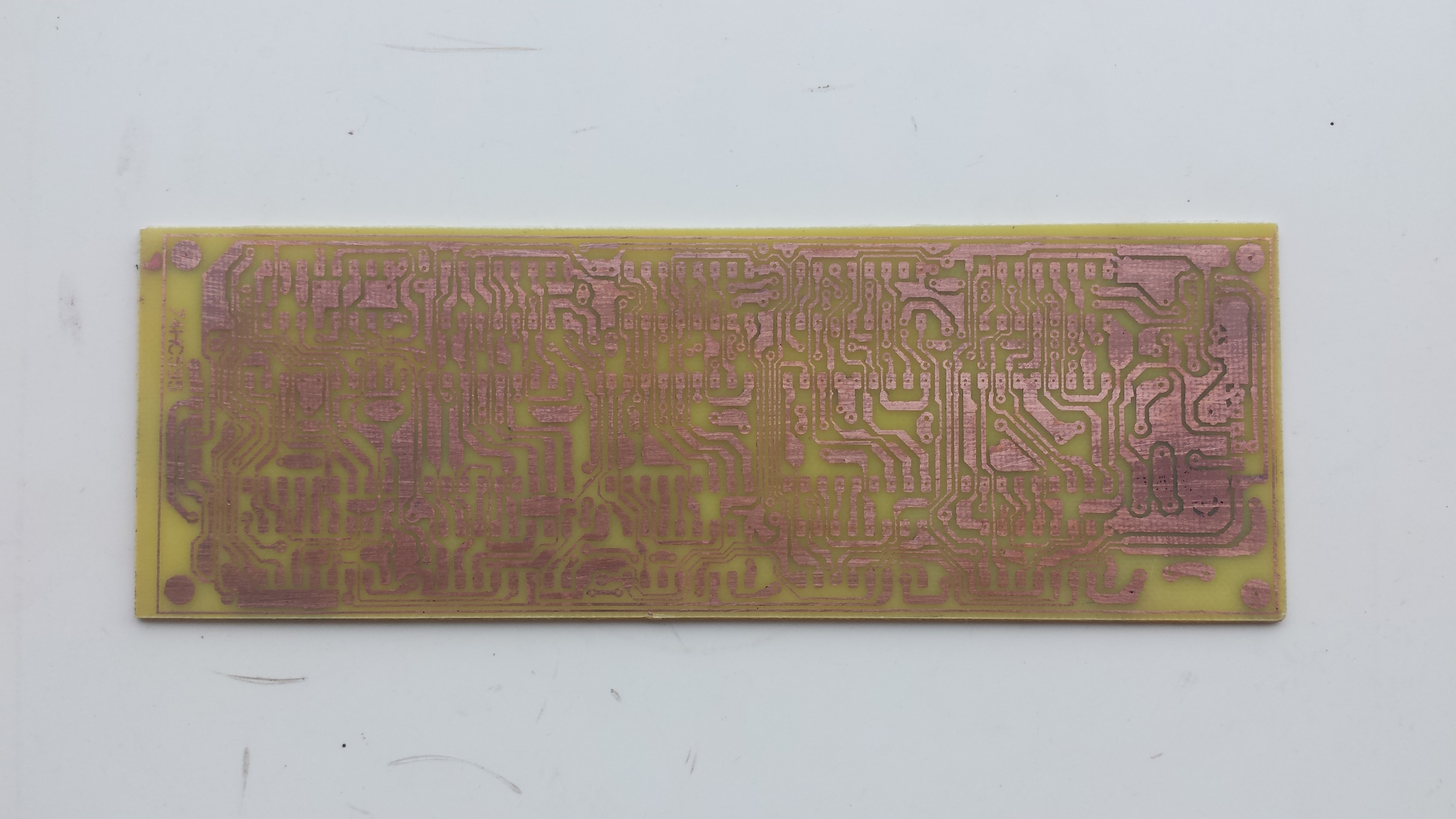
Copper Side After Etching

Making A DIY SN74HC595 Serial 10-Digit 7-Segment Display Board
Copper Side After Soldering

Making A DIY SN74HC595 Serial 10-Digit 7-Segment Display Board
Copper Side Before Etching
I spent one day to finish this DIY electronic hobby project.


Making A DIY SN74HC595 Serial 10-Digit 7-Segment Display Board
Finished PCBA Assembling

It works well but the display doesn't have Dot Point.

Making A DIY SN74HC595 Serial 10-Digit 7-Segment Display Board
I firstly test this PCBA With Arduino Program Due To Ease Of Use.

I store this design file in Github.

Arduino Test Program #1 Using SPI

#include <SPI.h>
 
 
void setup() {
  // put your setup code here, to run once:
  SPI.begin();
  pinMode(10,OUTPUT);
 
 
}
 
void loop() {
  // put your main code here, to run repeatedly:
 digitalWrite(10,LOW);
  SPI.transfer(0x3F);
  SPI.transfer(0x06);
  SPI.transfer(0x5B);
  SPI.transfer(0x4F);
  SPI.transfer(0x6D);
  SPI.transfer(0x7D);
  SPI.transfer(0x07);
  SPI.transfer(0x7F);
  digitalWrite(10,HIGH);
  delay(3000);
}

Arduino Test Program #2


#include <SPI.h>
 
unsigned char ssd[16]={0x3F,0x06,0x5B,0x4F,0x66,0x6D,0x7D,0x07,0x7F,0x6F,
                      0x77,0x7C,0x39,0x5E,0x79,0x71};
 
unsigned char msg1[10]={0x08,0x08,0x76,0x79,0x38,0x38,0x5C,0x08,0x08,0x08};
void setup() {
  // put your setup code here, to run once:
  SPI.begin();
  pinMode(10,OUTPUT);
}
 
void loop() {
  // put your main code here, to run repeatedly:
  /*
 digitalWrite(10,LOW);
 
  for(int i=9;i>=0;i--)
    SPI.transfer(ssd[i]);
  digitalWrite(10,HIGH); 
  delay(5000);
 
  digitalWrite(10,LOW);
 
  for(int i=15;i>=10;i--)
    SPI.transfer(ssd[i]);
  digitalWrite(10,HIGH); 
  delay(5000);
  */

   for(int i=9;i>=0;i--){
   digitalWrite(10,LOW);
 
  SPI.transfer(msg1[i]);
  delay(1000);
  digitalWrite(10,HIGH); 
   }
}

Eight-Digit Seven-Segment Display

I add two more digits to previous design. The PCB design is  quit bigger.

Making A DIY SN74HC595 Serial 10-Digit 7-Segment Display Board

Making A DIY SN74HC595 Serial 10-Digit 7-Segment Display Board

Making A DIY SN74HC595 Serial 10-Digit 7-Segment Display Board

Making A DIY SN74HC595 Serial 10-Digit 7-Segment Display Board

Making A DIY SN74HC595 Serial 10-Digit 7-Segment Display Board

Making A DIY SN74HC595 Serial 10-Digit 7-Segment Display Board

Making A DIY SN74HC595 Serial 10-Digit 7-Segment Display Board

Making A DIY SN74HC595 Serial 10-Digit 7-Segment Display Board

Making A DIY SN74HC595 Serial 10-Digit 7-Segment Display Board

Making A DIY SN74HC595 Serial 10-Digit 7-Segment Display Board

Making A DIY SN74HC595 Serial 10-Digit 7-Segment Display Board

Making A DIY SN74HC595 Serial 10-Digit 7-Segment Display Board

Making A DIY SN74HC595 Serial 10-Digit 7-Segment Display Board

Making A DIY SN74HC595 Serial 10-Digit 7-Segment Display Board


Making A DIY SN74HC595 Serial 10-Digit 7-Segment Display Board
Arduino Test Program

 Arduino Test Program for this PCBA

or #include <SPI.h>
 
unsigned char ssd[16]={0x3F,0x06,0x5B,0x4F,0x66,0x6D,0x7D,0x07,0x7F,0x6F,
                      0x77,0x7C,0x39,0x5E,0x79,0x71};
void setup() {
  // put your setup code here, to run once:
  SPI.begin();
  pinMode(10,OUTPUT);
 
 
}
 
void loop() {
  // put your main code here, to run repeatedly:
 digitalWrite(10,LOW);
 /*
  SPI.transfer(ssd[0]);
  SPI.transfer(ssd[1]);
 
  SPI.transfer(ssd[2]);
  SPI.transfer(ssd[3]);
 
  SPI.transfer(ssd[4]);
  SPI.transfer(ssd[5]);
 
  SPI.transfer(ssd[6]);
  SPI.transfer(ssd[7]);
 
  SPI.transfer(ssd[8]);
  SPI.transfer(ssd[9]);
  */

  for(int i=9;i>=0;i--)
    SPI.transfer(ssd[i]);
  digitalWrite(10,HIGH); 
  delay(5000);
 
  digitalWrite(10,LOW);
 
  for(int i=15;i>=10;i--)
    SPI.transfer(ssd[i]);
  digitalWrite(10,HIGH); 
  delay(5000);
}

Click here to download load this PCBA design file.